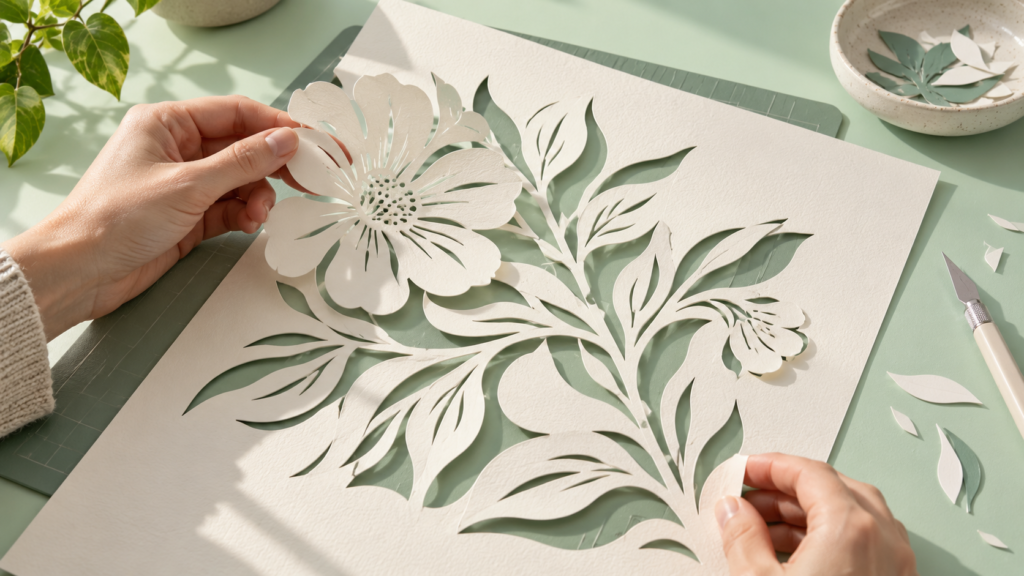
A paper-cutting design can look simple in a thumbnail and still contain details that are difficult to cut or assemble. Before you download a file, check how it will be made, how large it will be and what the finished pieces need to do.
Read the design at its working size
Open the preview and compare the smallest shapes with the size of the finished project. Narrow bridges can tear when separated from the sheet; tiny openings can close up if the design is reduced. A detailed botanical outline may work at poster size but lose clarity on a small tag.
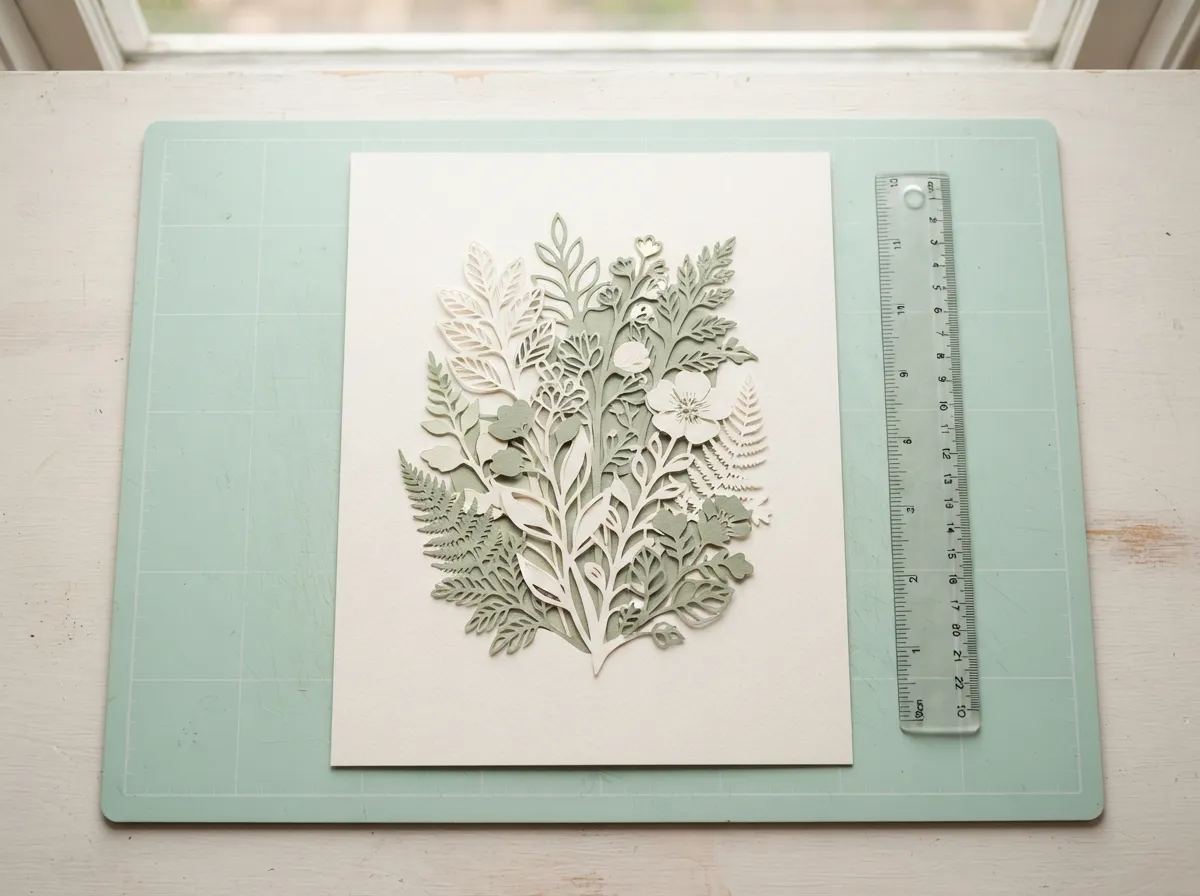
Look for places where separate parts connect. In a single-sheet cut, small islands may fall away unless the design holds them in place. In a layered project, a fine cut may be supported by another sheet, but the assembly instructions should make that relationship clear. Do not assume a decorative preview shows every cut line.
Confirm the file fits your tools
Read the format list and the creator’s compatibility notes. “SVG” describes a file type; it does not guarantee that every cutting program will interpret the file in the same way. If you plan to cut by hand, check whether the lines and shapes are practical for your tools and skill level.
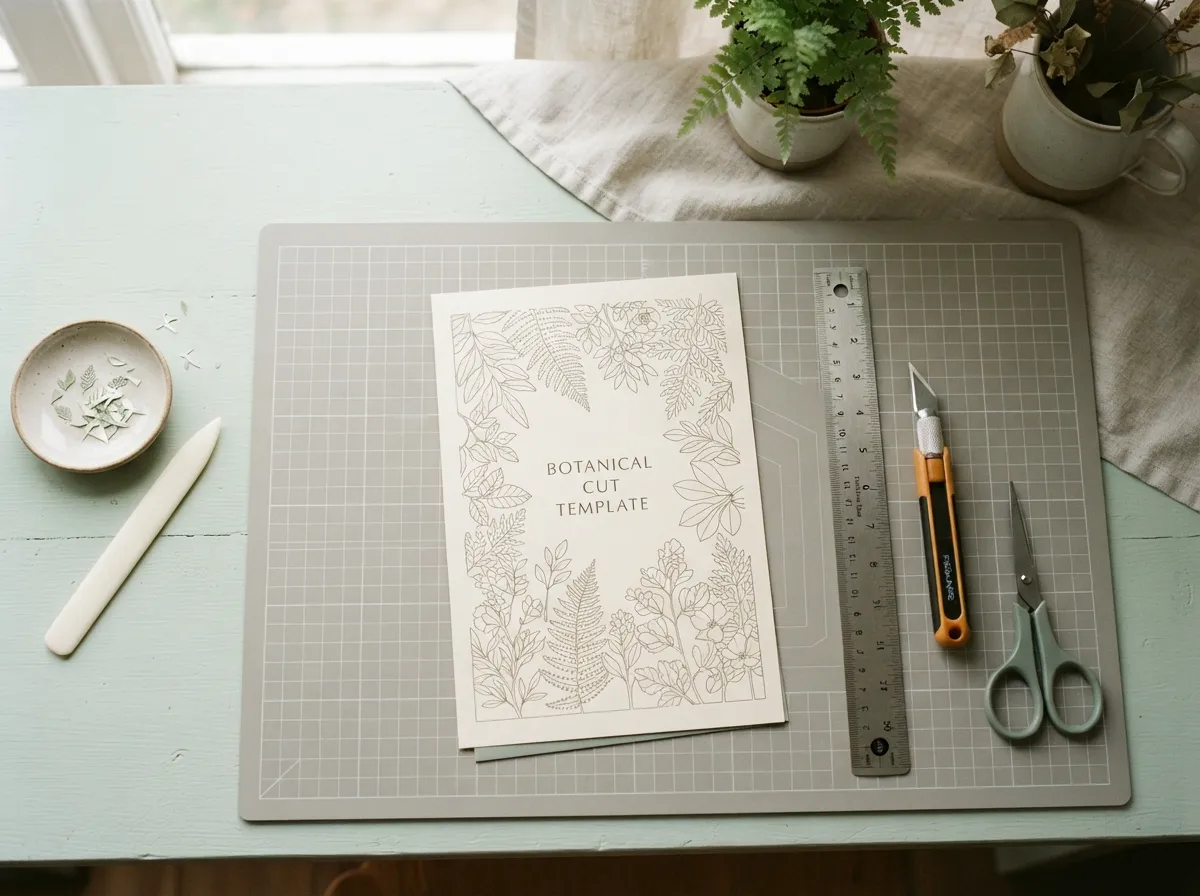
Find the intended finished dimensions and compare them with your paper, cutting area and final display space. If you need to resize the design, inspect the narrowest bridges and smallest openings again at the new scale. Our guide to preparing an SVG for a cutting machine walks through file preview, size and test cuts.
Check what comes with the download
A product image does not tell you whether the download includes one design or several, a layer key, assembly instructions or alternate sizes. Read the listing text and any preview pages for those details. If a project needs spacers, a frame or a separate support, make sure the instructions identify that before you begin.
For a layered scene, count the distinct sheets and decide where each one belongs. The layer count alone does not tell you how difficult a project will be: a few intricate sheets may take longer to assemble than several broad silhouettes. Choosing a shadow box SVG covers frame size, layers and purchase details. The broader paper craft SVG guide helps compare other kinds of files.
Use a three-pass check
- Preview: Can you tell what the finished object is and how the main pieces relate?
- Fit: Does the file open in the intended software, and does its working size fit your paper and tools?
- Test: Can you cut a small detail on scrap and separate it without damage? Check the maker’s guidance before changing settings.
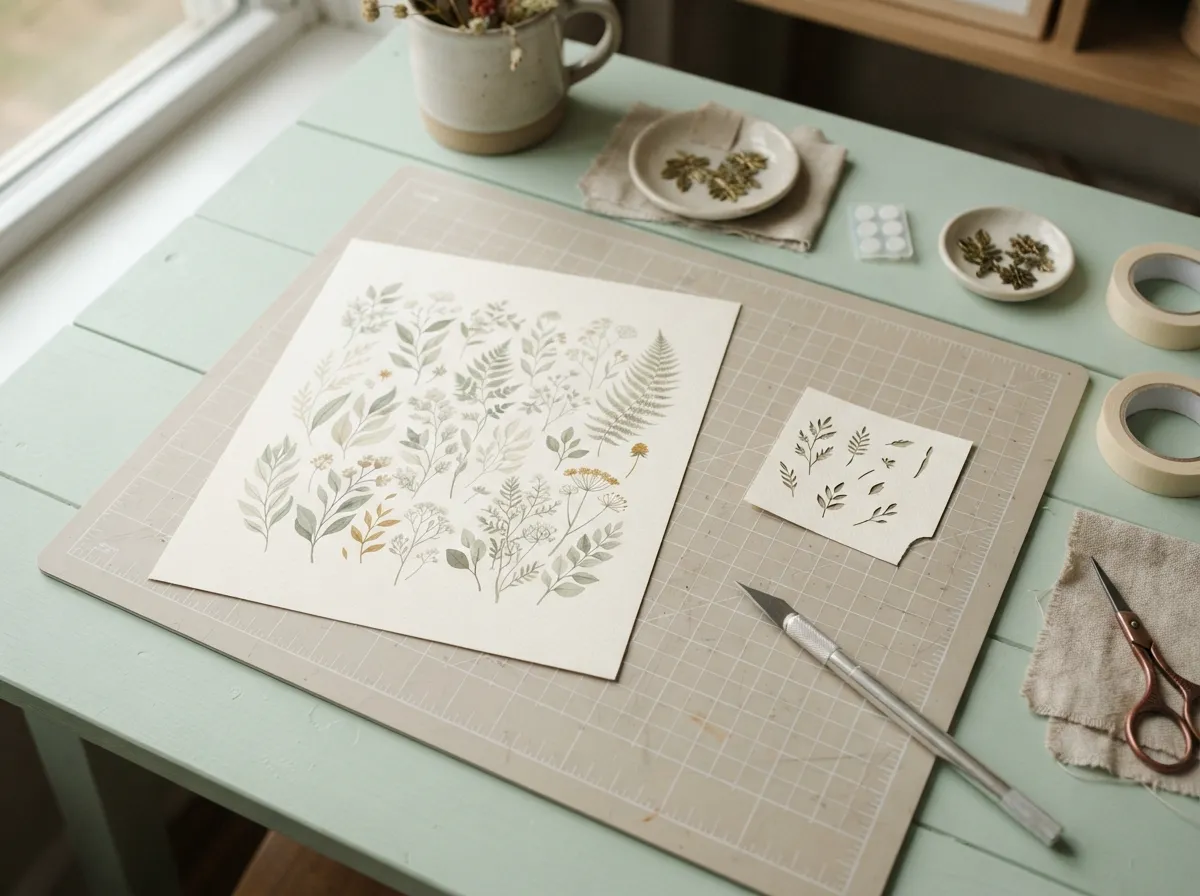
If any pass raises a question, pause before using the final sheet. A clear listing and an accurate preview should tell you what to expect; when they do not, ask the seller or choose a file with more complete instructions.
Keep the original file and preview together
Save the download in a project folder with its preview or instruction sheet. If you resize or rearrange pieces, work from a copy so the original dimensions and cut paths remain available. Give the copied version a name that includes its new size; this helps you distinguish it from the source file later.
Separate cut lines from score or fold lines only when the file notes explain which is which. A colored line in a preview may be a visual guide rather than a machine instruction. Check the file key and software preview before sending any sheet to the machine.